
User Manual
Tuner
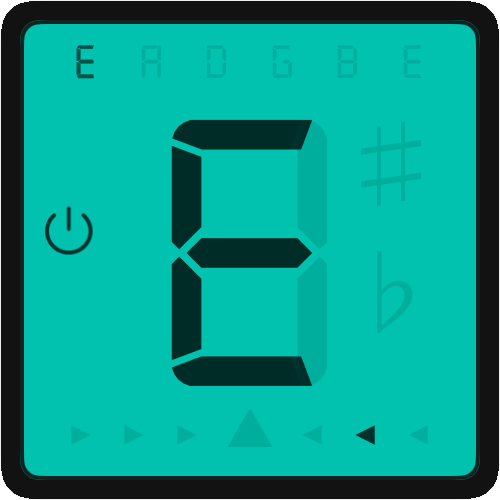
Playing your instrument in tune is an important steps in musicianship. It's best to tune up before a performance, but you may also need to tune mid-performance if you are changing tunings. The OnSong® app features a robust tuner you can bring up on the screen to tune your instrument without digging in your guitar case.
How To Use
As soon as you add the tuner, it starts listening using the default audio input route like the built-in microphone on your device. You can use the power icon on the left side of the widget to toggle listening on and off. As you play a note, it appears prominently in the middle. Arrows underneath guide you to perfect pitch. Once the center arrow is lit consistently, the note in the top line illuminates to indicate that string has been tuned. This uses the selected instrument and tuning of the viewed song, or as configured in the widget settings.
Settings
You can tap on the widget to enter configuration mode which displays buttons in the corners. Tap on the settings button in the lower left corner to access the tuner settings.
Docking
In the lower right corner is the docking button when in configuration mode. This provides options for sizing and placing the widget to various locations on the screen.
Hide
This one is pretty obvious. Just tap on the X in the upper right corner to hide the widget. You can show it again using the Widgets Menu. Hiding the widget will also cause the microphone to stop listening if it's active.
You may only need the widget when you need to tune. You can assign the Toggle Widget Action to a foot pedal or other trigger to bring up the widget when needed and then hide it when you're done.