
User Manual
Pick Songs
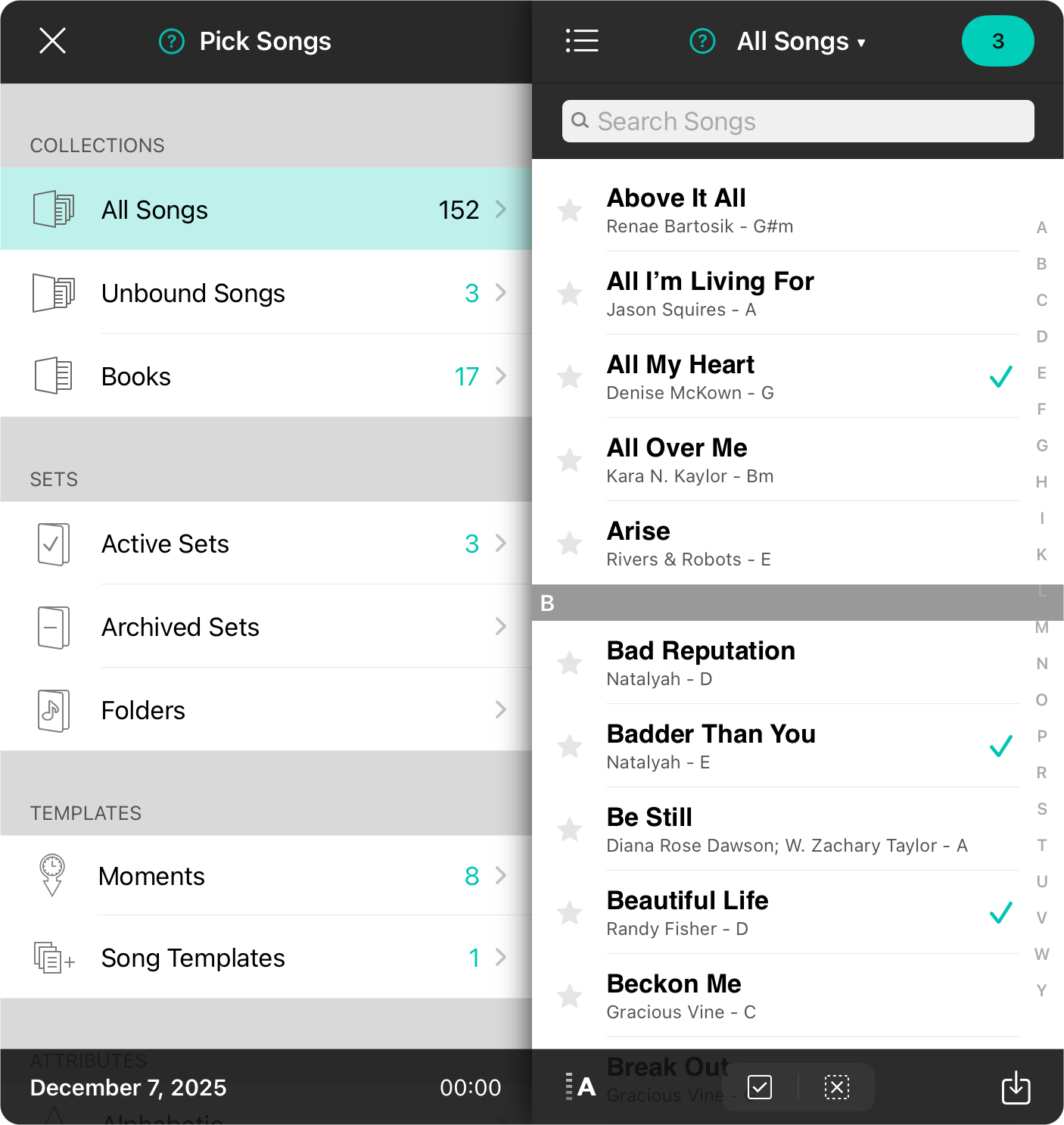
The set picker gives you full access to your OnSong® library, letting you browse and search for songs all while queueing up songs to add to your set.
Pick
Below are multiple ways you can browse, search, and sort the songs list on the right side of the screen. Tap on songs you want to add to the set and the button in the upper right corner will increment to indicate those songs are ready to be added. The button will pulse to indicate this is the completion step.
Browse
You can use the left side of the screen to choose different ways to browse your library like by book, set, attribute, or tag. At the bottom of this area if the name of the set as well as its duration which changes as songs are selected.
Search
Use the search bar to further filter your song list. The list will filter as you type the title of the song. Tap on the Search or Return key on your keyboard to perform a deep search of lyrics.
Sort
You can sort songs in the list by tapping on the sort icon in the lower left corner.
Select/Deselect All
In the middle of the toolbar on the right side is a select/deselect all control. If you've found just what you need by filtering, use this to add or remove all those songs from your queued selection.
Add Songs
You can add songs to your library while picking songs for your set just as you would in the regular Songs Menu.